
Dynamic 365 CRM integration with Thunai
Overview
This integration enables seamless synchronization of contacts, meeting participants, call notes, and leads, empowering sales and support teams with AI-driven automation for enhanced customer relationship management (CRM) and streamlined workflows.
Key Features
- Importing contacts from Dynamic 365 to Thunai
- Pushing meeting participants to Dynamic 365
- Sending call notes to Dynamic 365
- Automatic lead generation and pushing to Dynamic 365
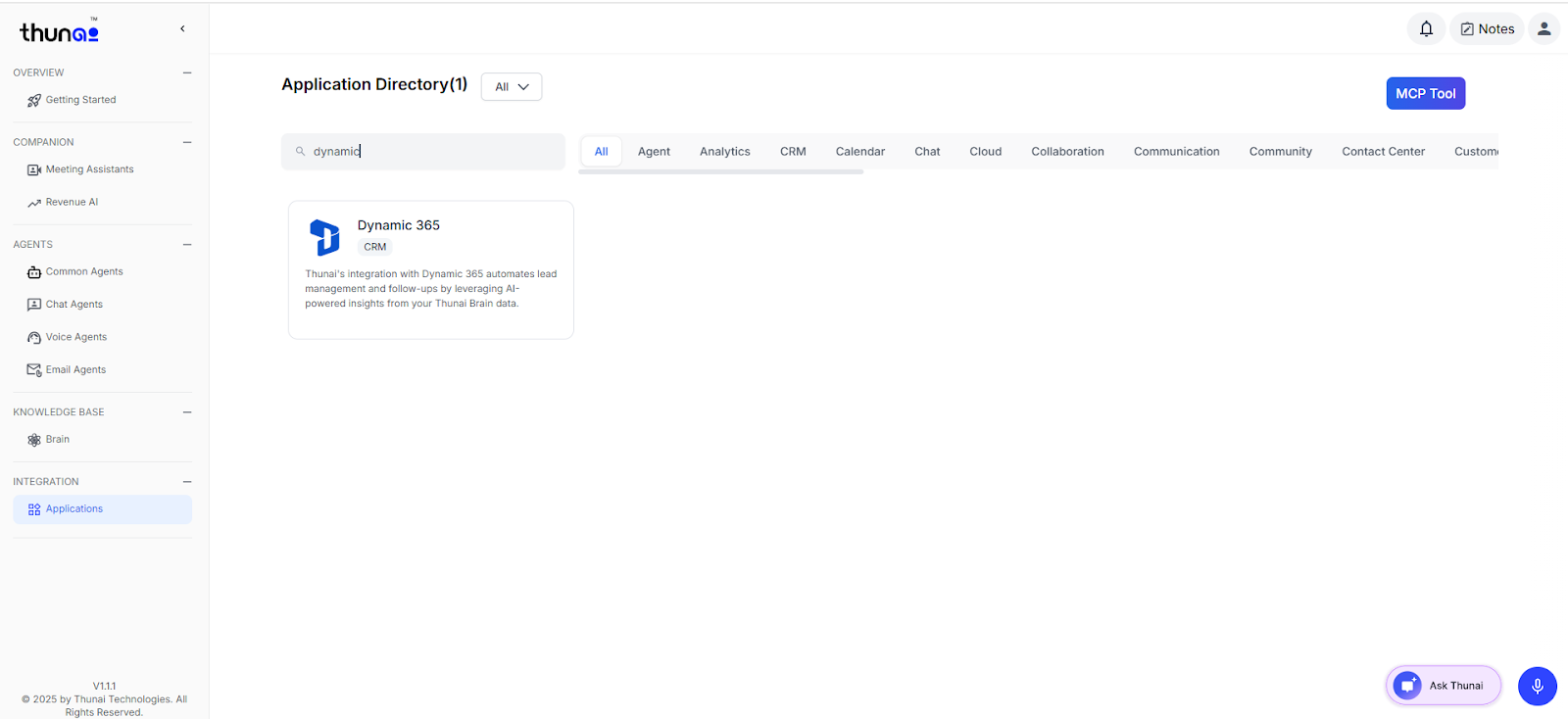
Step 1: Login to Thunai
- Open the Thunai application.
- Navigate to the Dynamic 365 section under Applications.
- Click on the Connect button to begin the integration.
Step 2: Authorize Connection
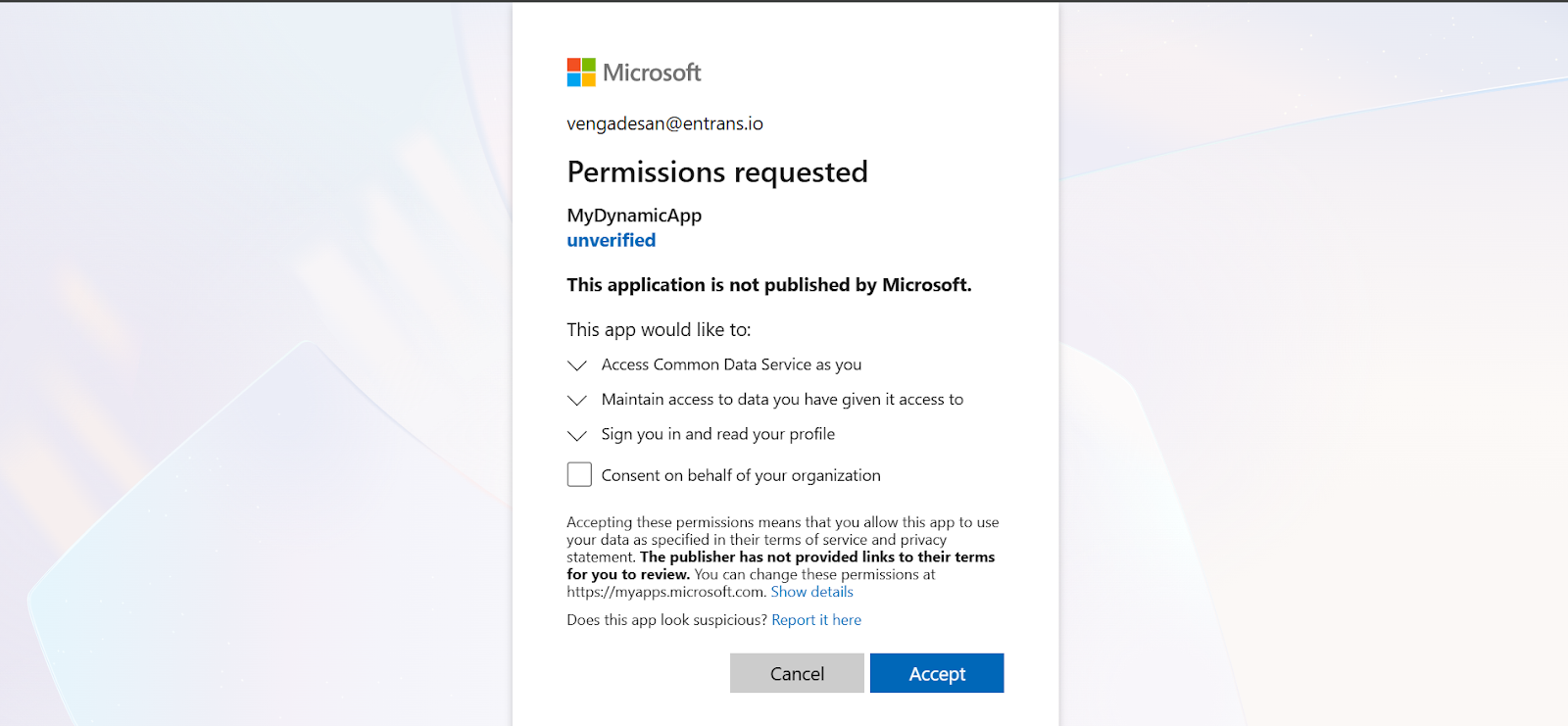
- Verify your workspace and click Accept to authorize the connection.
- Once authorized, click Continue to proceed.
Step 3: Configure Dynamic 365
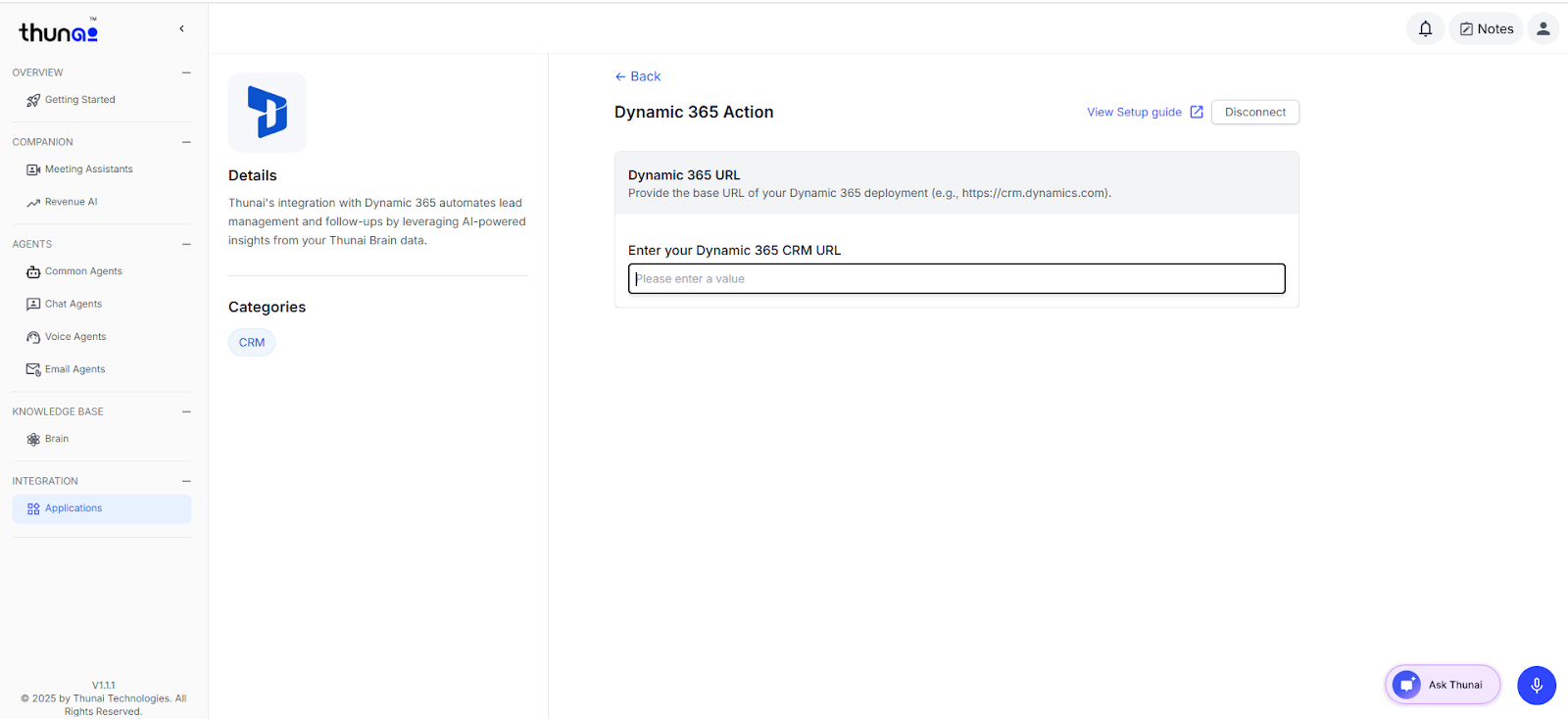
- Enter your Dynamic Org URL in the provided field.
- Click Save to complete the configuration.
- A confirmation message like “Success! Dynamic 365 Connected Successfully” will appear on your screen.
Integration with Agents
Dynamic 365 can be integrated with Chat, Voice, and Email Agents to streamline CRM operations.
With this integration, agents can create contacts, fetch details, add notes, and retrieve notes history directly from Dynamic 365 without switching platforms.
Supported Agents & Features
1. Chat Agents
- Contact Creation – Create new Dynamic 365 contacts directly through chat.
- Get Contact Details – View details like name, email, phone number, and company in chat.
- Add Notes to Existing Contacts – Attach notes or updates to Dynamic 365 contacts.
- Get Notes Details – Retrieve and display notes history for any contact.
- Authorization (Optional Security Layer) – Add OTP verification or similar methods before allowing contact or notes access.
2. Voice Agents
- Contact Creation – Create Dynamic 365 contacts using voice commands.
- Get Contact Details – Access contact information instantly through voice interactions.
- Add Notes to Existing Contacts – Record and attach notes to Dynamic 365 contacts.
- Get Notes Details – Listen to or fetch notes history for contacts.
- Authorization (Optional Security Layer) – Secure actions with OTP or voice authentication.
3. Email Agents
- Contact Creation – Add new Dynamic 365 contacts via email instructions.
- Get Contact Details – Fetch contact details through email-based queries.
- Add Notes to Existing Contacts – Send notes via email to be stored in Dynamic 365 contacts.
- Get Notes Details – Retrieve notes history from Dynamic 365 through email.
- Authorization (Optional Security Layer) – Use OTP or email verification before confirming CRM actions.
Configuration
Create & Configure Common Agents
Set up Chat, Voice, or Email Agents as per CRM requirements.
👉 Learn how to create & configure agents
Set Workflow & Map with Dynamic 365
Define workflows for contact creation, detail retrieval, and notes handling.
Map workflows with Dynamic 365 to ensure seamless CRM operations.
👉 Learn more about workflows here
Once configured, Dynamic 365 can be managed directly via Chat, Voice, or Email Agents, with the option to include an additional security layer for safe and controlled CRM access.