
Thunai Brain – User Guide
Thunai Brain is a core component of Thunai, designed to work seamlessly with chat, call, and voice agents. It helps you capture knowledge, enable sales, support marketing, and build an evolving knowledge base. With built-in security and easy integrations, Thunai Brain learns from your interactions, becoming smarter and more personalized over time.
Getting Started
Step 1: Log in
- Open the Thunai app.
- Enter your credentials.
- From the left-hand menu, click on Brain.
Uploading Files
Step 2: Add a new file using following methods
- Click the Add button in the top-right corner.
File Upload
- Select the type of file you’d like to upload:
- Audio file
- Video file
- Text document

Add from a URL :
- Instead of uploading from your device, you can paste a URL to add files directly.
Upload a text document :
- You can also manually upload or paste text content as a file.

Text:
Any text can be added to the knowledge base to feed the brain.

Periodic Sync:
- Use the Periodic Sync option to keep your files updated automatically.
- You can sync content from various platforms (e.g., Google Docs, Google Slides, websites, YouTube).

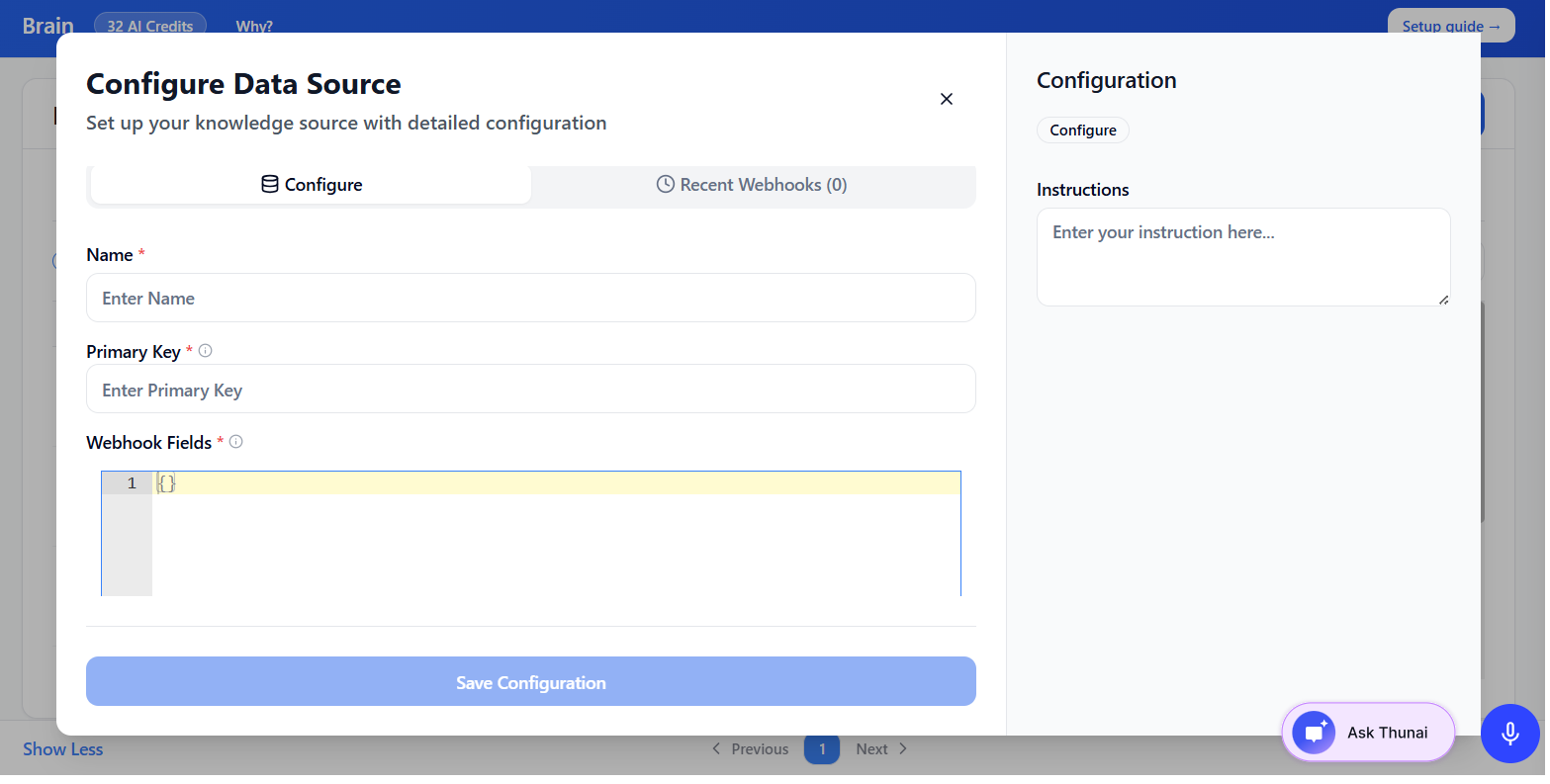
Webhook :
Configure webhook to to Trigger an upload to Brain from other applications Directly
To Learn about configuring webhook, Click Here
Finalizing Upload
Step 7: Complete the process
- After entering the required details, click Next.
- Once uploaded, files will be processed and listed under Recent Files in the Brain section.
Supported File Types
Thunai Brain supports a wide range of sources:
- PDFs
- Websites
- YouTube videos
- Audio files
- Google Docs
- Google Slides
What Thunai Brain Does
- Summarizes your uploaded content.
- Builds connections across topics.
- Creates a knowledge base covering your company, products, and industry trends.