
CRM Connectors in Revenue AI
Revenue AI allows seamless integration with multiple CRM systems. You can connect, auto sync, or manually sync contacts and opportunities between Revenue AI and your CRM accounts. This ensures your data stays up to date across platforms.
Steps to Connect and Sync CRMs
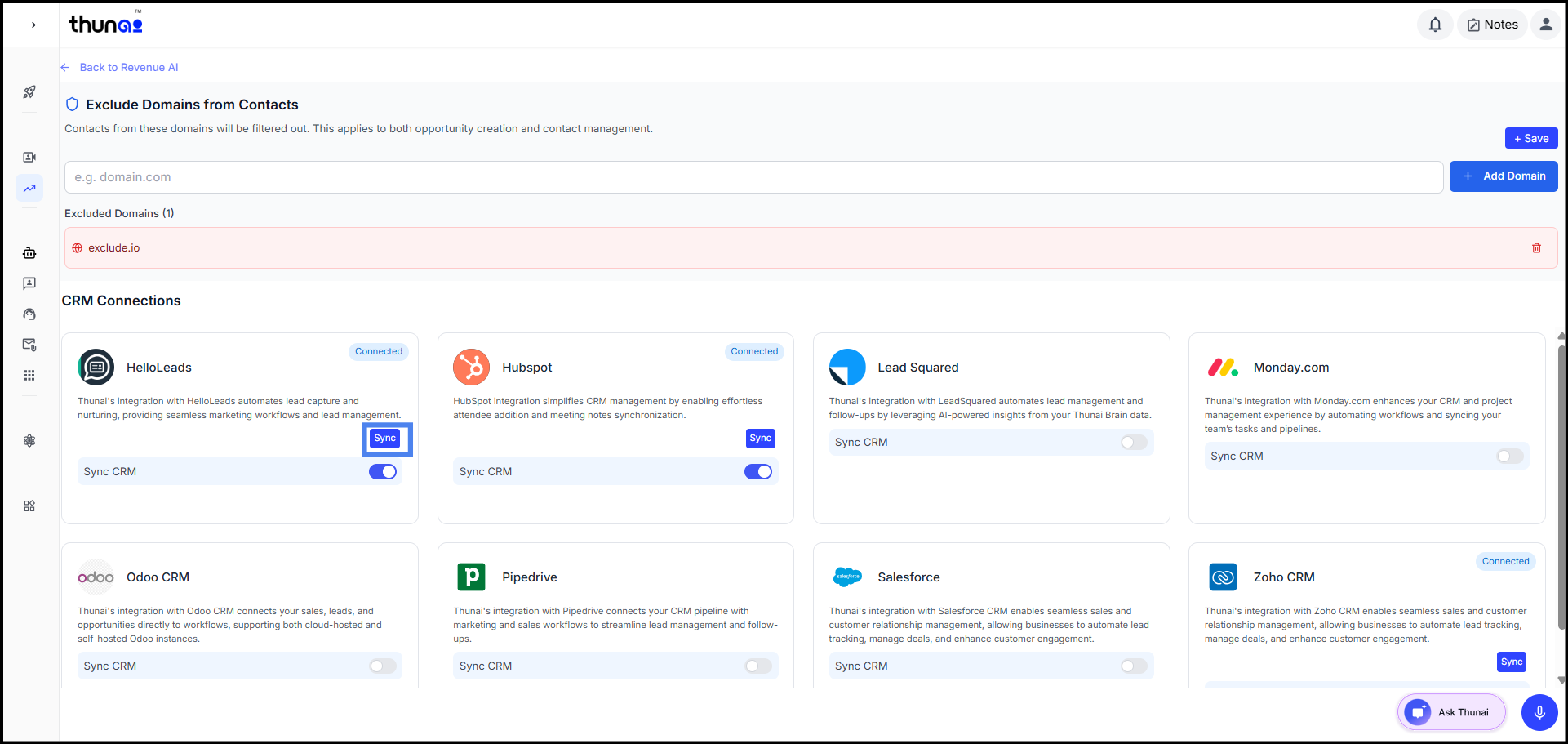
Step 1: Access CRM Connectors
- Log in to your Thunai Portal.
- Navigate to Revenue AI → Contacts → Settings.
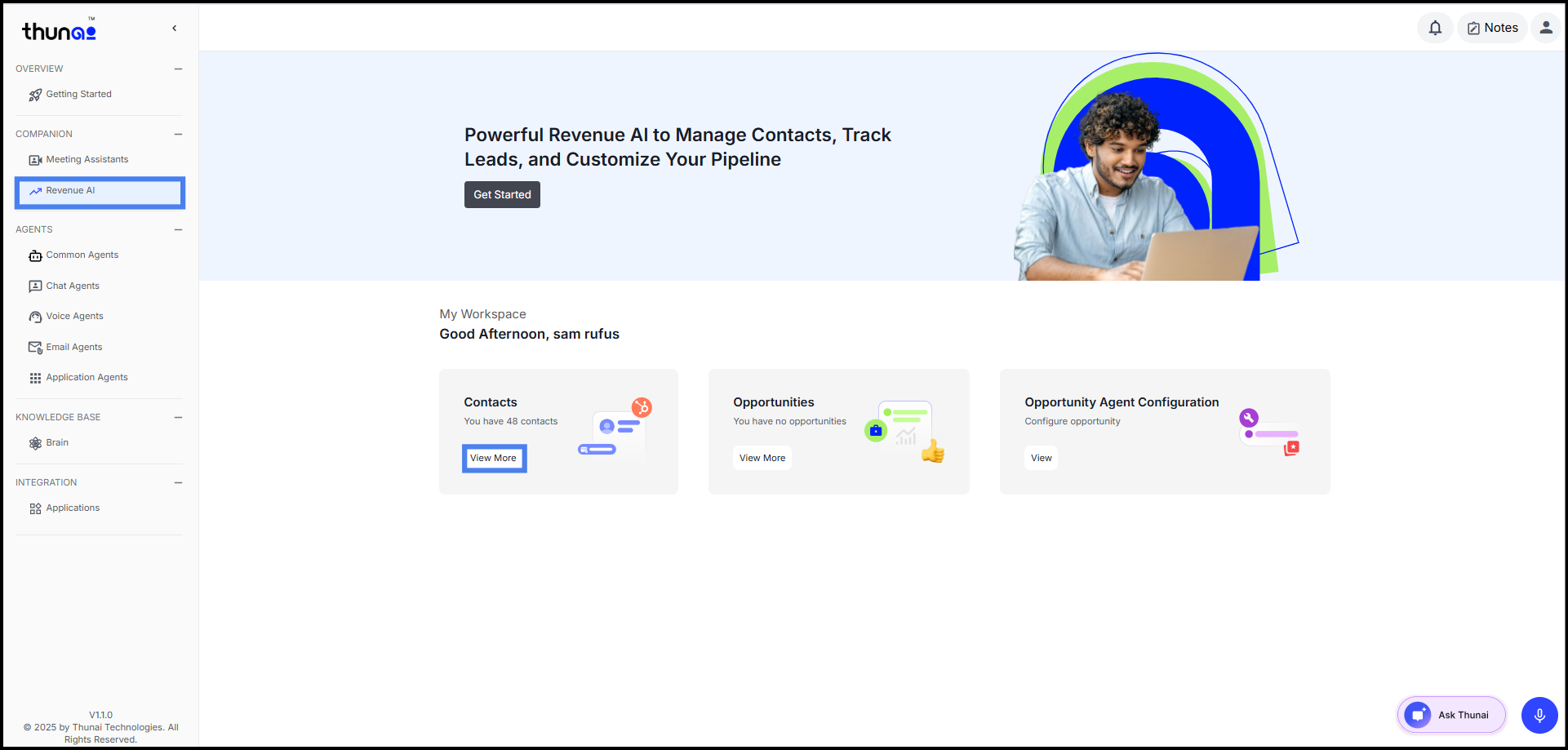
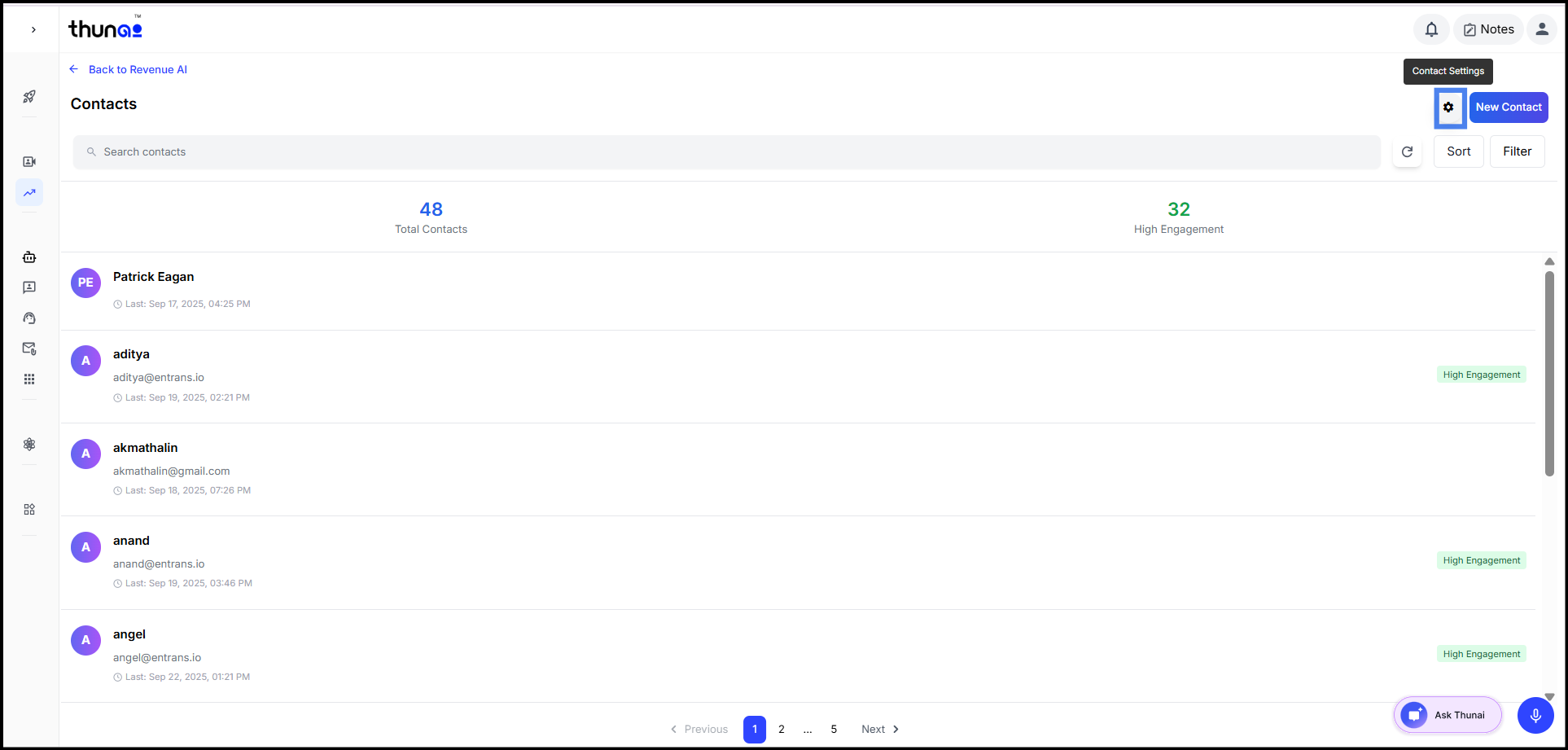
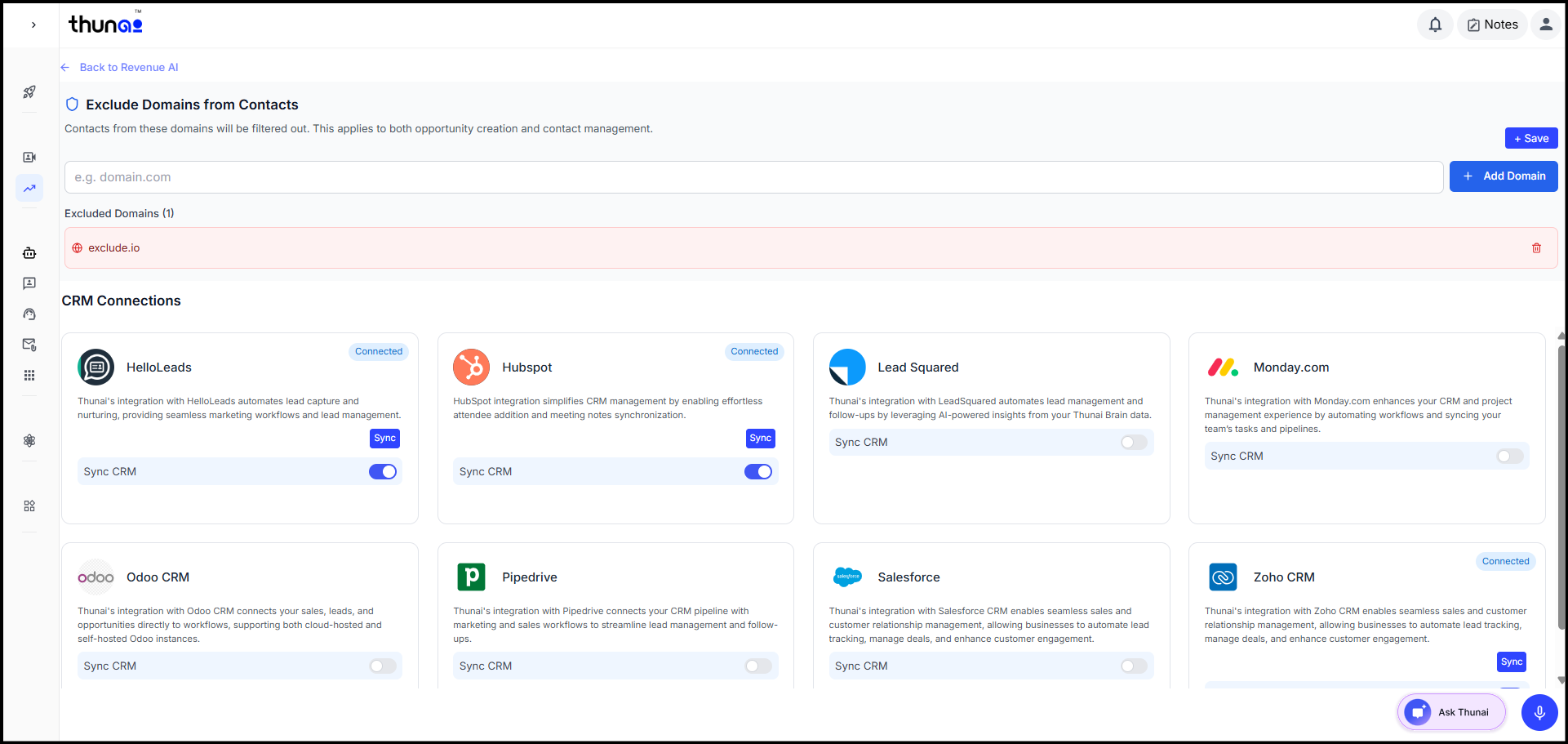
- All available CRMs from the marketplace will be listed.
- CRMs already connected in app modules will be displayed as Connected.
Step 2: Enable Auto Sync
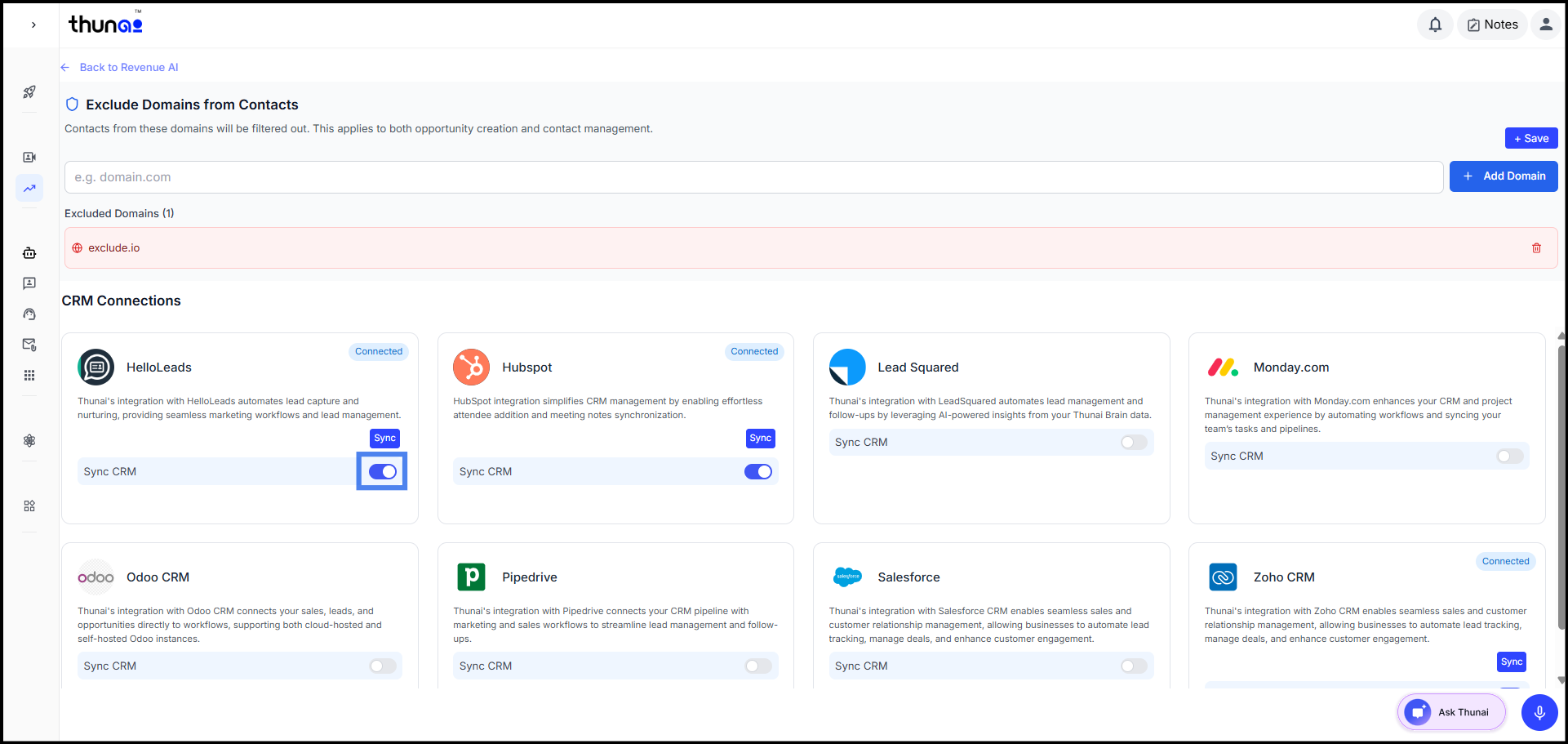
- Select a connected CRM from the list.
- Turn on Auto Sync.
- Auto sync ensures that all contacts, opportunities, and related data in Revenue AI are automatically synced to the connected CRM account in real time.
Step 3: Manual Sync for Existing Contacts
- Identify contacts in Revenue AI that have not been synced.
- Click the Sync button to update them manually.
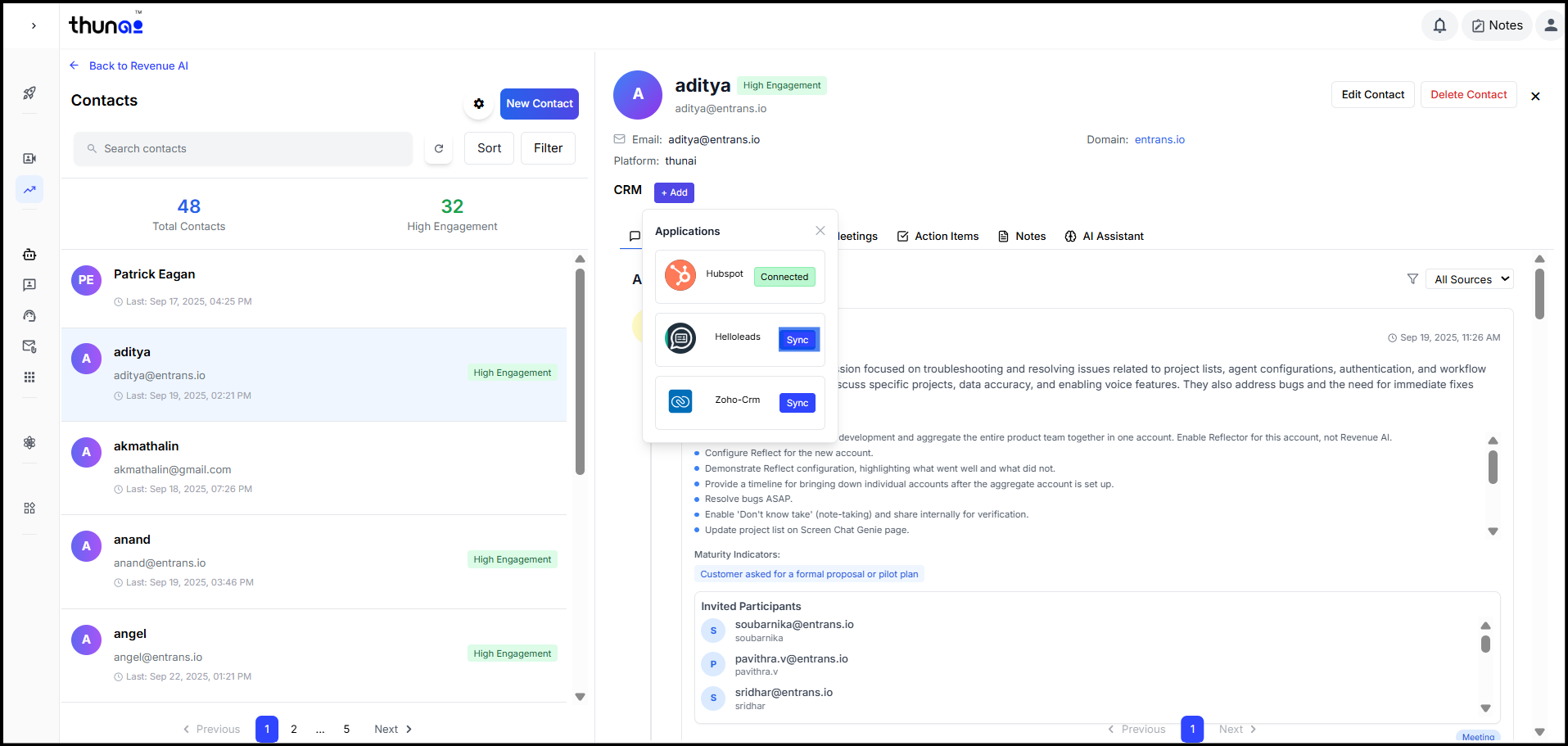
Step 4: Sync Individual Contacts
- Open the contact in Revenue AI.
- Select the CRM account to sync with.
- Click Sync to update the contact details.
Key Benefits
- Keeps CRM and Revenue AI data aligned.
- Supports both automatic and manual syncing.
- Ensures contacts and opportunities are always up to date across systems.